Today we are changing Linux operating system system language, how to install and remove language, apply new settings and more.
Tip
If you do not know the language your system is in just follow the icons in the tutorial, they are the same. Restarting the computer
Warning
When you finish making language changes just restart your computer to apply new settings fully!
Get to the Language window and it’s elements
(Click on the individual step or triangle to hide or show the details (images, info, …))
Step 1: left mouse button click on the
LM menu button
Step 2: left mouse button click on the
System settings button
Step 3: left mouse button click on the
Languages button
Now you have Language Settings window open.
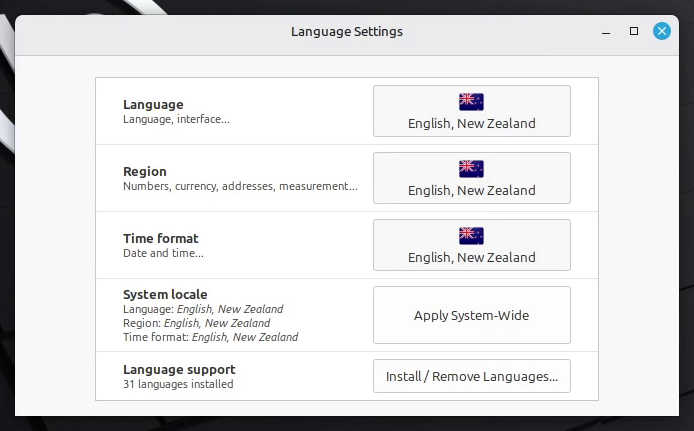
To change curent user profile language settings change first 3 elements based on alerady installed languages (check the Set the new language settings for the user guide) but if it not there then install it, check the (check the Install new language guide bellow.
To change whole system language (default fallback system language settings, login window, other profiles, …) check the Apply selected user language settings system wide guide bellow.
To install or remove some language use the Install/Remove Languages... button, check the Install new language and Remove installed language guide bellow.
Set the new language settings for the user
- Language language for the Linux user profile.
- Region region for the user.
- Time format time and date format for the user.
Tip
Remember that if you do not have desired language installed just follow Install or remove new language guide.
(Click on the individual step or triangle to hide or show the details (images, info, …))
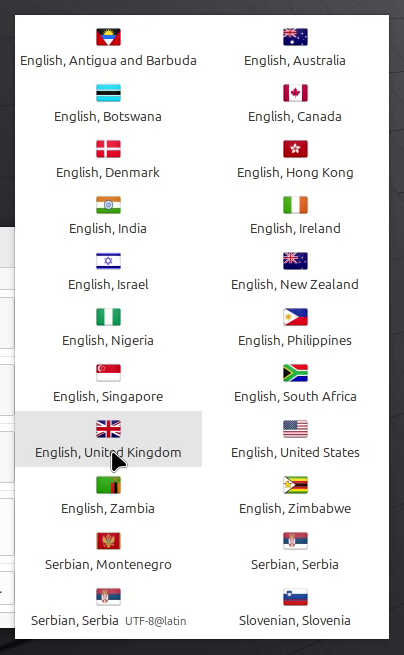
Change user language: left mouse button click on the current language button and then select the desired language from the list with the left mouse button click

Change user region: left mouse button click on the current
Region button and then select the desired language from the list with the left mouse button click
Change user date and time format: left mouse button click on the current
Time format button and then select the desired language from the list with the left mouse button click
Apply selected user language settings system wide
(Click on the individual step or triangle to hide or show the details (images, info, …))
Step 1: left mouse button click on the
Apply System-Wide button
Step 2: in the
Authentication Required window type in your current logged-in user password and confirm it with the left mouse button click on the Authenticate button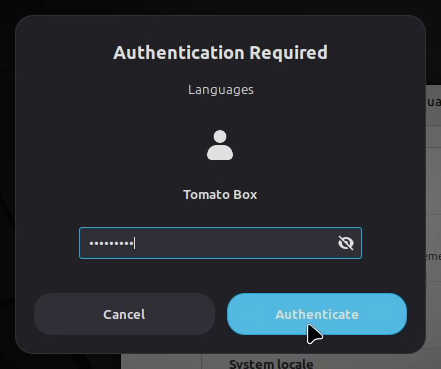
Install new language
(Click on the individual step or triangle to hide or show the details (images, info, …))
Step 1: left mouse button click on the
Install/Remove Languages... button button
Step 2: in the Authentication Required window type in your cuttent logged-in user password and confirm it with the left mouse button click on the Authenticate button
Step 3: in the new window
Install / Remove Languages and then left mouse button click on the Add... button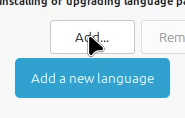
Step 4: in the new window
Add a new Language left mouse button click on the desired language and confirm it with the left mouse button click on the Install button
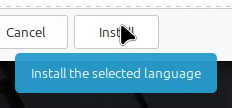
Now wait untill all packets are installed.Step 5: in the previous window
Install / Remove Languages left mouse button click on the language you installed and then left mouse button click on the Install language packs button

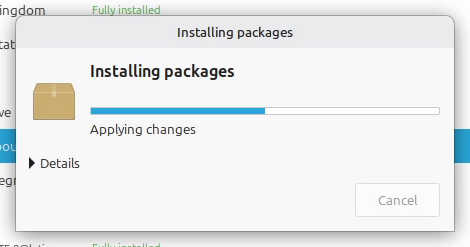
Step 6: left mouse button click on the
Close button
Now you can change your language like we did in the Set the user new language settings guide
Remove installed language
(Click on the individual step or triangle to hide or show the details (images, info, …))
Step 1: left mouse button click on the
Install/Remove Languages... button button
Step 2: in the Authentication Required window type in your cuttent logged-in user password and confirm it with the left mouse button click on the Authenticate button
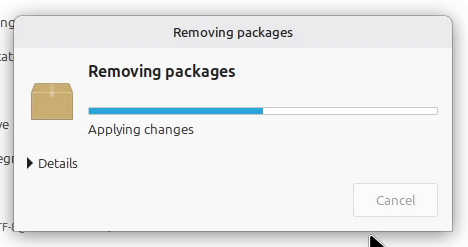
Do this for all the languages you want to remove. If Now just wait untill all the packages are removed.Step 3: in the new window
Install / Remove Languages left mouse button click on the desired language to remove and then left mouse button click on the Remove button
Aditional software has to be removed window shows up just left mouse button click on the Continue button.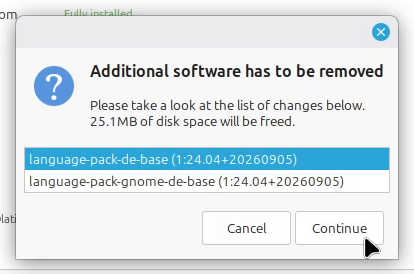
Step 4: left mouse button click on the
Close button
Restarting the computer
(Click on the individual step or triangle to hide or show the details (images, info, …))
Step 1: left mouse button click on the
LM menu button
Step 2: left mouse button click on the red
Shut Down button
Step 3: left mouse button click on the
Restart button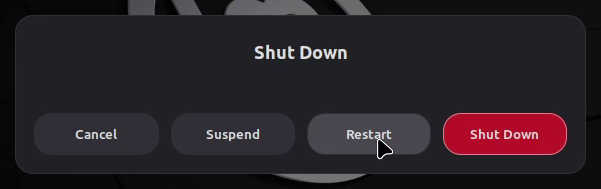
Links
- Linux tutorials on this site
- Linux Mint
- Make new Linux user in few ways + more
- Linux playlist - YouTube
Video version
(25.09.2026, 18:00 / 06:00 PM, timezone: CEST / UTC+2 / GMT+2)