New sidebar in Firefox is annoying it keeps appearing by it self so let’s disable and replace it with the bookmarks or history sidebar depends on the browser setting.
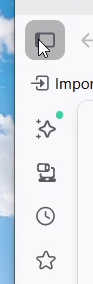
Tip
Before you begin make sure you open Mozilla Firefox web browser!
(Click on the individual step or triangle to hide or show the details (images, info, …))
If there is already some text in the box remove or select it and then start typing the address:Step 1: Left mouse button click inside Mozilla Firefox URL area, type in
about:config and then press Enter key on the keyboardabout:config



This warning is if you really want to enter advanced browser configurations. If you follow this tutorial exactly you will have no problem at all.Step 2: If
Proceed with Caution warning pops up, left mouse button click on the Accept the Risk and Continue button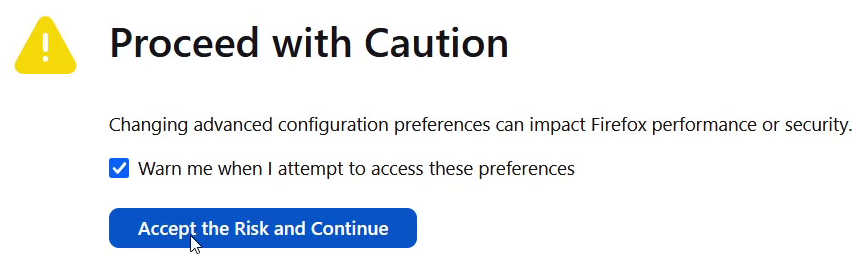
Step 3: Left mouse button click inside the search box and type in
sidebar.rev to see the sidebar.revamp result bellow
Step 4: Left mouse button click on the
Toggle button on the end of sidebar.revamp line to turn new sidebar on or offtrue to enable or false to disable the new sidebar.

Video version
(Tuesday, 31.March.2026, 18:00 / 06:00 PM, timezone: CEST / UTC+2 / GMT+2)