Let’s learn in several ways how to create Windows shortcuts for websites, programs, files, … . For video version check video version and what I used for this tutorial check
For this tutorial I used Windows Desktop for the new shortcuts, you use what ever folder you want.
Website drag and drop shortcut
(Click on the individual step or triangle to hide or show the details (images, info, …))
Step 1: Open the desired folder for the shortcut and web browser with website opened
Click and hold left mouse button on the button (check the images below) near the website address, drag it to the desired location and then release mouse button. Now shortcut is created.Step 2: Drag and drop…


Create shortcut from the Start menu
First open the desired folder for the shortcut.
(Click on the individual step or triangle to hide or show the details (images, info, …))
Step 1: Left mouse button click on the
Start button

Inside Step 2: Find the desired element for the shortcut
Windows 11 Start menu looks different than in Windows 10 so if you want to see the list of the programs, left mouse button click on the All > button.
Click and hold left mouse button on the the desired element, drag it to the desired location (Start menu pinned apps, taskbar, desktop or to some folder) and then release mouse button. Now shortcut is created.Step 2a Drag and drop method


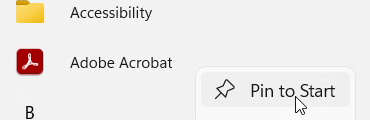
Right mouse button click on the desired element and then:Step 2b Right mouse button menu
Pin to Start to pin the shortcut in the Start menu.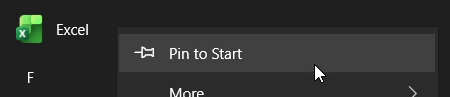
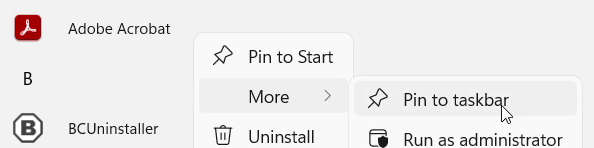
More and then left mouse button click on the Pin to taskbar to add shortcut in the Windows taskbar.
Shrotcuts from the Windows File Manager
First open the desired folder for the shortcut then the location of the element you want to make shortcut of. You can also use only one File manager window if you want.
(Click on the individual step or triangle to hide or show the details (images, info, …))
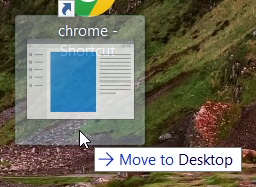
With left mouse button click and hold the desired element and drag it to the desired location. Before you release mouse button check that you have Keyboard button options when dragging:Drag and drop method
Create link written othervise keyboard click and hold left Alt button on the keyboard, first release mouse button and then keyboard button. Now shortcut is created.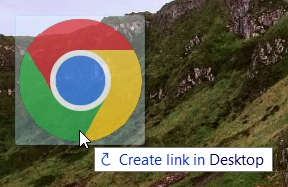

To see the Right mouse button menu method
Send to and then left mouse button click on the Desktop (create shortcut) or what ever option you want.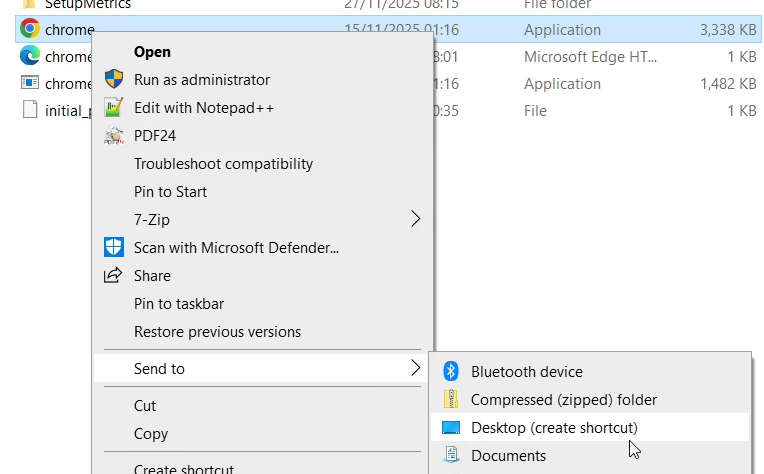
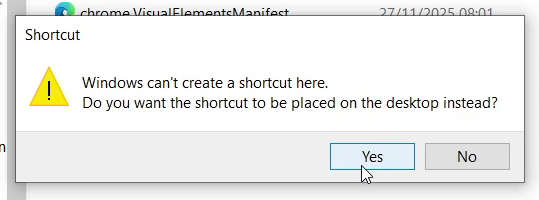
Create shortcut. If folder is protected you will see an error window and with left mouse button click Yes button if you want to create shortcut on the desktop instead but if you want to cancel the progress, left mouse button click on No.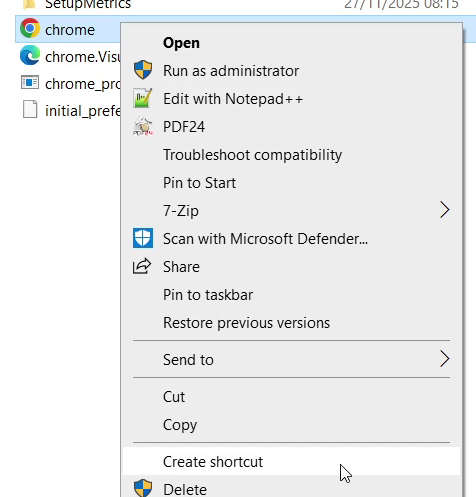
Send to and Create shortcut in Windows 11 first you need to left mouse button click on the Show more options button.
Manually create the shortcut
(Click on the individual step or triangle to hide or show the details (images, info, …))
Step 1: Open the desired folder for the shortcut
Inside the the new window if you want to copy and paste or write the location, continue reading this step to write or copy and paste the location but if you want manually select the element skip to Website address needs to contain File or folder location example: Now skip to the Step 2: Right mouse button click in the empty area of the desired folder, go over
New and then left mouse button click on the Shortcut button

Step 3.
www. or refference like http://, https://, ftp://, … without at least one of them for example aconetwork.net Windows does not regnonize it as a website address. Good examples: https://aconetwork.net OR www.aconetwork.netC:\Program Files\Google\Chrome\Application\chrome.exeStep 5
Step 3: With left mouse button click the
Browse button
To expand folders with left mouse button click on the arrows located on the left side of the window until you get to the desired location. Now left mouse button click on the desired element, example: To confirm selected element left mouse button click on the Step 4: Navigate to a desired element location, left mouse button click on the element and then left mouse button click on the
OK button
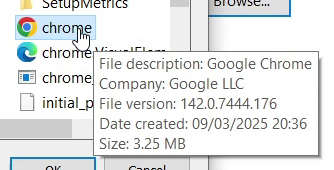
OK button and this will automatically populate text box in the previous window.
Step 5: Left mouse button click on the
Next button
Text box is under the Step 6: In the new text box type in the desired name and then left mouse button click on the
Finish button to finish creating the shortcutType the location of the item:.
What I used for this tutorial?
- 64-bit Windows 10 22H2 and Windows 11 24H2
- Web browsers:
 Brave,
  Google Chrome and
  Mozilla Firefox. More about them check the tools.
Video version
(05.12.2025, 18:00 / 06:00 PM, timezone: CET / UTC+1 / GMT+1)