I got NAS QNAP TS-212P from a friend and today is dissasembly, cleanup, thermal paste replacement and more on the agenda. This is slow NAS but for basic network share, FTP and similar is good enough. NAS is short for Network Attached Storage.
Dissasembly
Note
When you go dissasemble or do any work inside the device do not hurry because if not carefull you can quickly damage something.
(Click on the individual step or triangle to hide or show the details (images, info, …))
In my case those screws were missing so this part was skipped.Step 1: Remove the two screws in the back

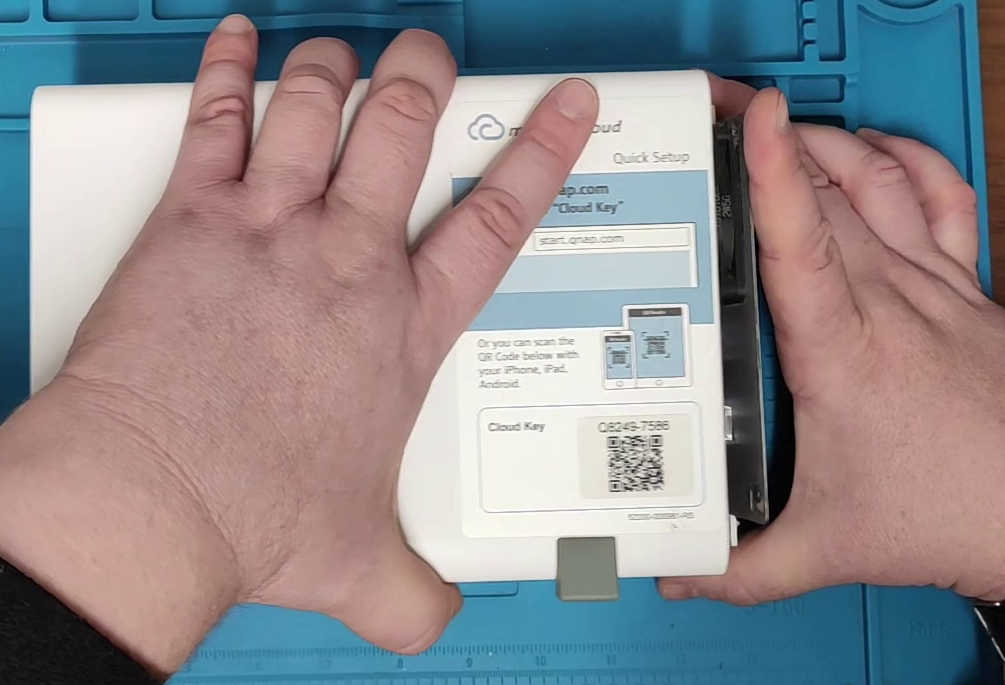
Step 2: Top part of the case pull to front and away
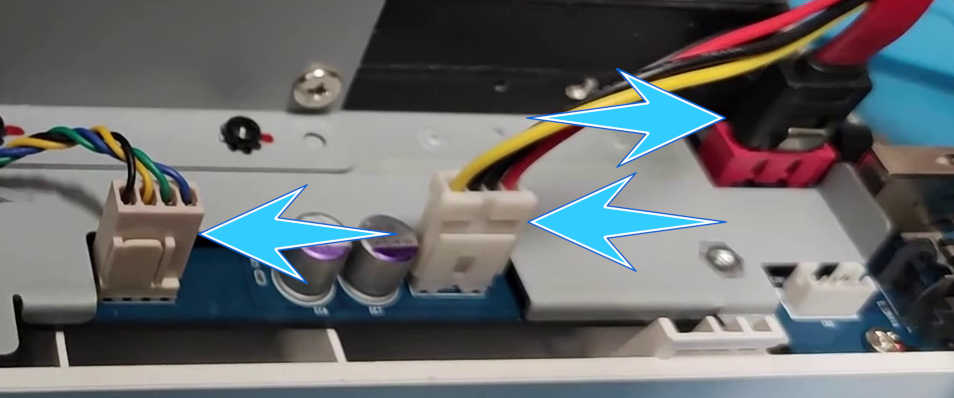
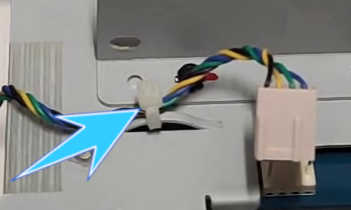
Step 3: Disconnect fan and 2 SATA connectors and cut the zip-tie holding fan wires
Bottom disk drive when unscrewed slide it towards the forward and then remove it.Step 4: Unscrew all screws holding disk drives on both sides and remove them
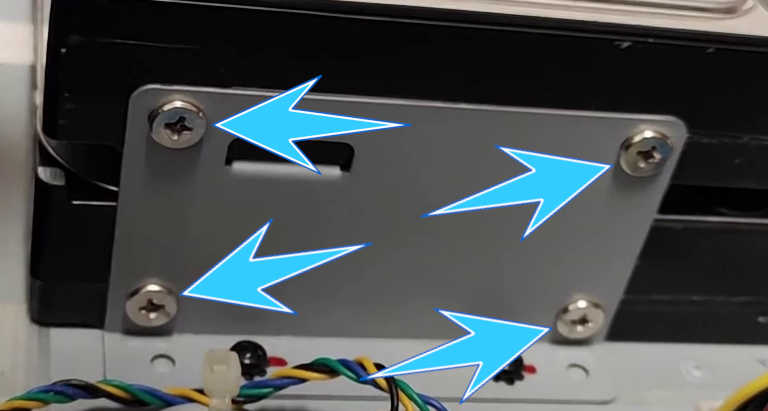
Step 5: Unscrew 4 screws holding disks cage and motherboard in the case
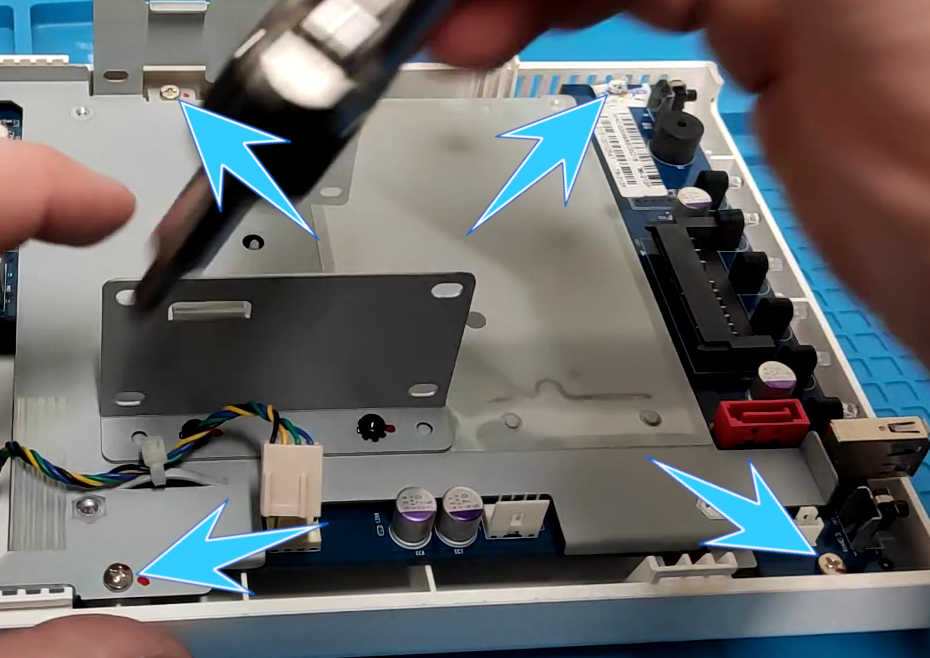
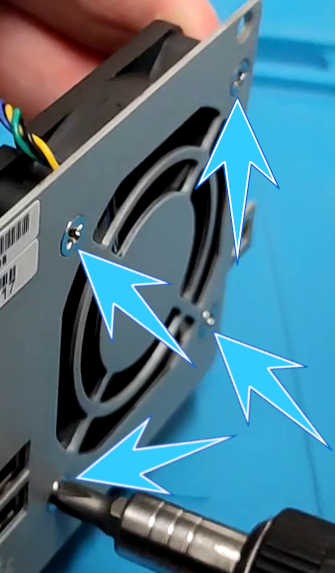
Step 6: Unscrew fan and remove it
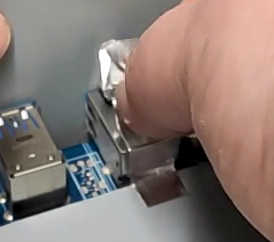
Step 7: Peel away metal tape just enough that motherboard can be taken out and remove the motherboard
To take off the cooler, continue reading below.
Thermal paste replacement
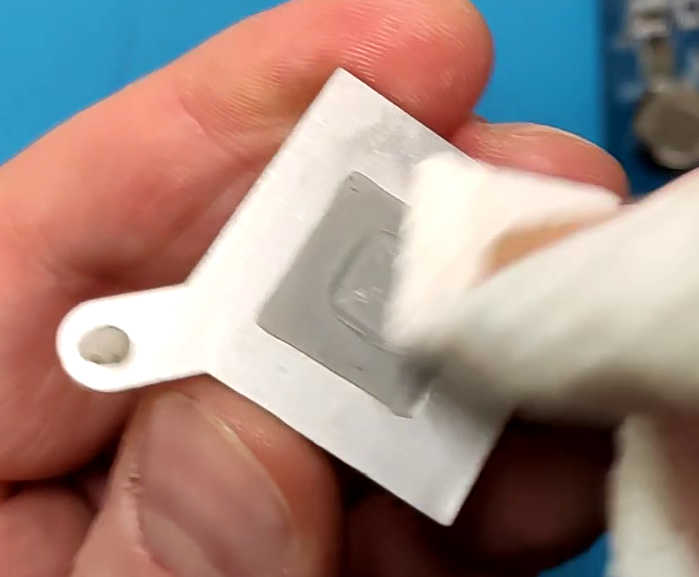
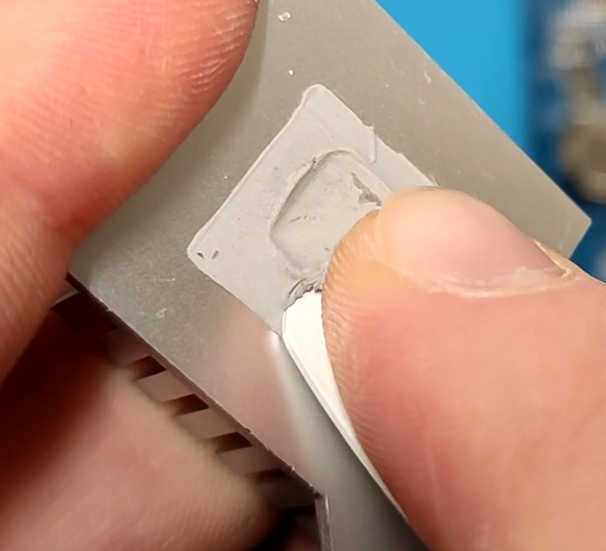
For this I used paper towel, isopropyl alcohol (IPA) and if the old paste is dry and hard which paper towel and IPA is not enough use some plastic to scrape it all off BUT DO NOT USE METAL because it damages the cooler!
If the thermal paste is soft and not dry probably you do not need to replace it.
(Click on the individual step or triangle to hide or show the details (images, info, …))
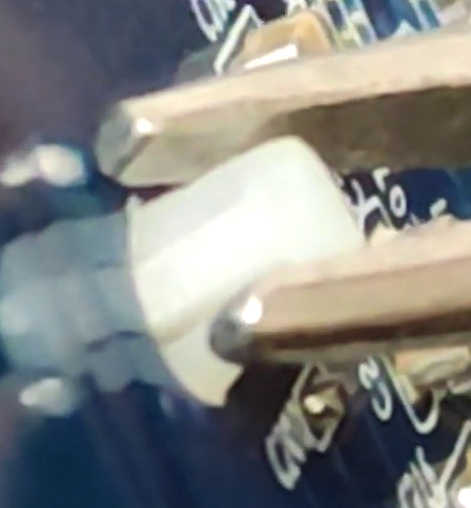
Step 1: With pliers squize and push out both plastic clips holding the cooler
First put on the surface or paper towel IPA and then clean the old thermal paste off. Do NOT touch cleaned area with your fingers! If it is too dry and hard take some plastic (like old credit card for example) and scrape it off first and later clean it with IPA and towel.Step 2: On the cooler and processor remove old thermal paste (if it is dry and hard)
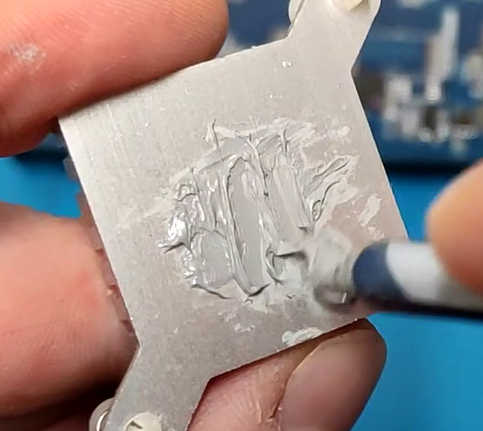
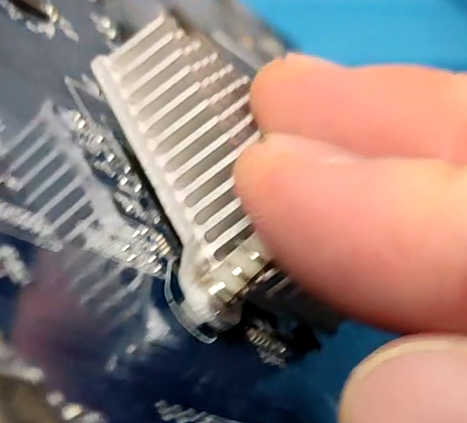
Step 3: Put pea size thermal paste on the processor or cooler and attach the cooler back to the motherboard

What is next?
You probably want to change the coin battery CR2032 and replacement battery must be the same model! Best way is to check it’s voltage (V) with the multimeter (set do direct current (DC)) and make sure it is at least 3-3,1V and if lower than that replace it with new one.
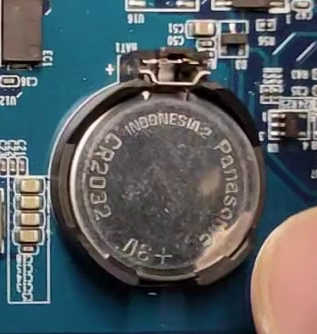
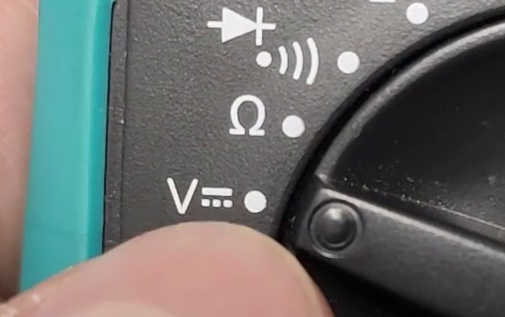
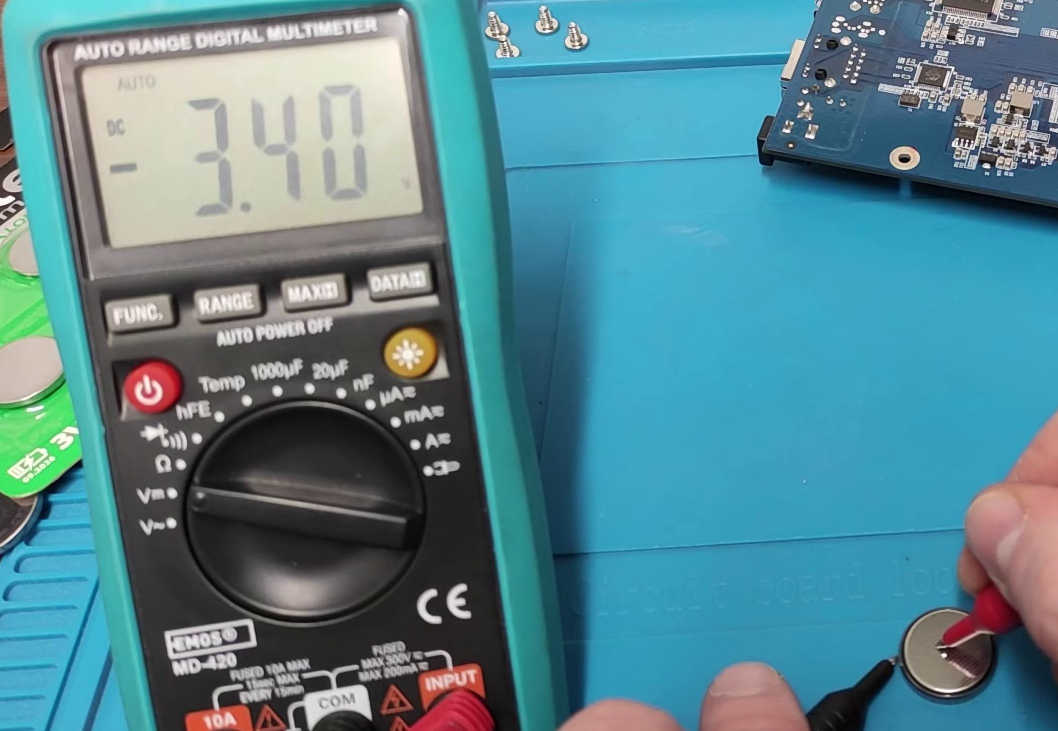
Now when all is done just put it back together but in reverse order until that point. Now just connect the power adapter and network cable to turn on and use the device. When you see green light is near STATUS in front of the device that means that device is fully booted up and you will be notified with first beep when you power on the device and second beep when it is fully booted up and ready (green status light).
Reseting the QNAP NAS
Note
To reset, login or whatever make sure that the device is powered on and green light is near STATUS in front of the device.
There are several ways to reset the NAS. You can manually do it outside in the back of the device with the RESET button or when logged in to the NAS from it’s settings.
If you want other reset options, check the Resources section.
(Click on the individual step or triangle to hide or show the details (images, info, …))
When the device is turned on and running with green light near the 3 seconds for partial reset The NAS beeps once to indicate a successful reset and data remains intact. The following settings are restored to default: 10 seconds for full reset One beep is at 3 seconds and second one at 10 seconds. Data on the drives remains intact.RESET button in the hole on the back side of the device
STATUS in front of the device take something thin like tooth pick or something na push and hold the RESET button inside the hole for the:
Login with QFinder Pro (download, install, run, scan)
Note
To login or whatever make sure that the device is powered on and green light is near STATUS in front of the device. Connect network cable to the NAS and your home router to be able to access it from the computers.
Let’s download, install and run the program.
(Click on the individual step or triangle to hide or show the details (images, info, …))
You can also search it in your search engine like Google and open the resultStep 1: Open the web page for the
QFinder Pro and left mouse button click on the Download blue buttonhttps://www.qnap.com/en/software/qfinder-pro

Step 2: Scrool down and left mouse button on the correct installation download button, I have Windows OS so we will click
Download (.exe)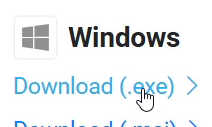
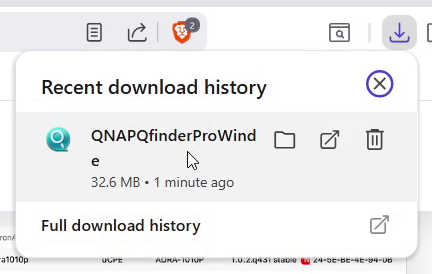
If Step 3: Open veb browser downloads and left mouse button click on the downloaded file to open it
User Account Controll (UAC) window shows left mouse button click on the Yes button.
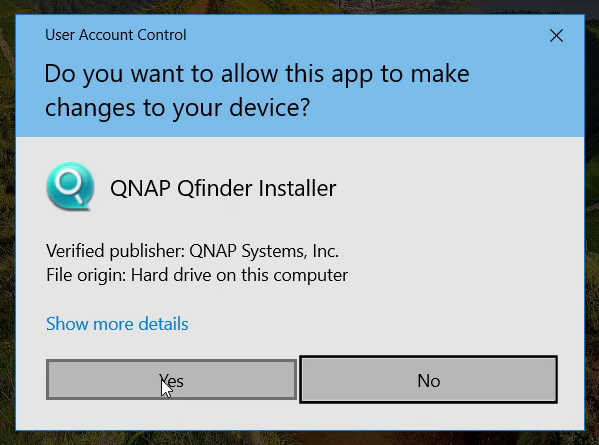
Step 4: Left mouse button click on the
OK button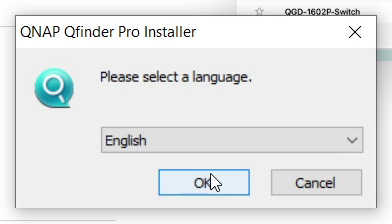
During the installation with left mouse button click you can check or uncheck checkboxes for aditionall options.Step 5: Left mouse button click on the
Next, Install and Finish buttons to complete the installation

If Windows gives you alerts about the program just confirm it all. Also to check or uncheck checkboxes left mouse button click them.Step 6: First time program asks for the region, just left mouse button click on the
OK button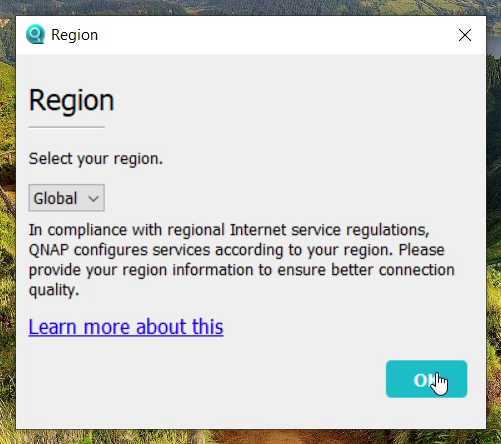
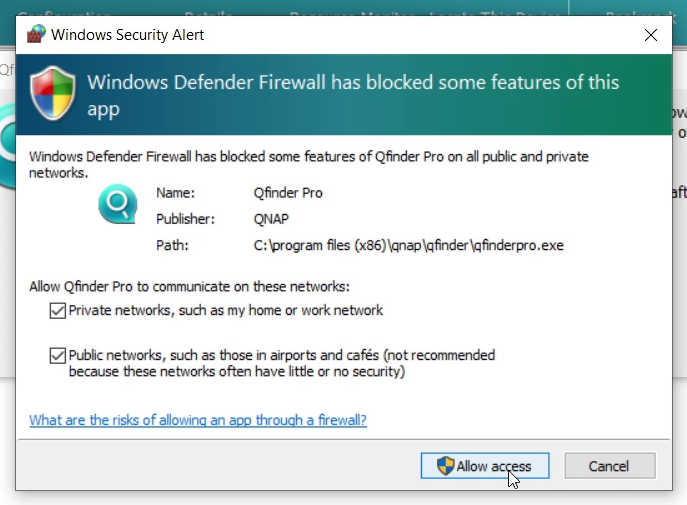
This can happen if device is not started, device IP network address is not correct, not connected to same network as your computer, …Step 7: If program shows you error that no devices found left mouse button click on the
OK button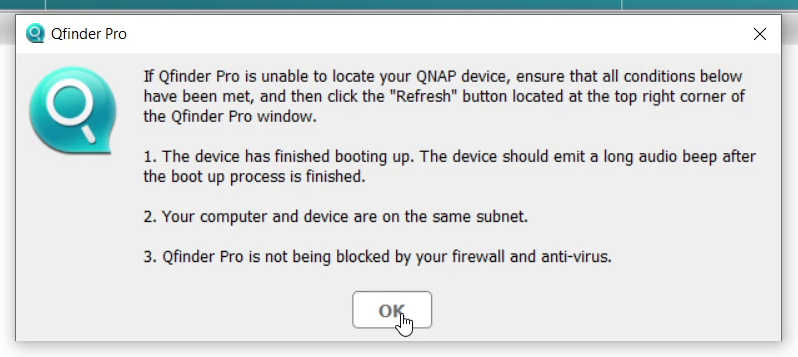
Step 8: Left mouse button click on the refresh button to scan network for the NAS device

Step 9: To open
Login page for your NAS device right mouse button click on the NAS device in the results and then left mouse button click on the Login button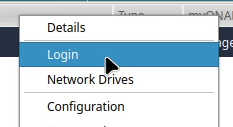
Step 10: Left mouse button click on the
Login button
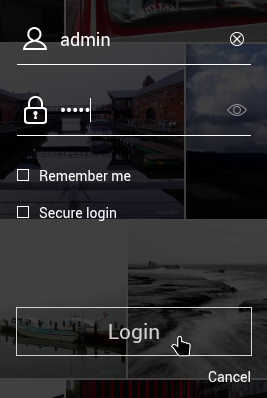
Default username and passoword values: And now you can start configuring your NAS device, enjoy :)Step 11: Fill out the credentials and then left mouse button click on the
Login button admin
Resources
Video version
(26.12.2025, 18:00 / 06:00 PM, timezone: CET / UTC+1 / GMT+1)