Today is about aplication updates settings in Google Play store settings on Android devices.
Automatic aplications updates settings
Warning
If you are updating your applications over the mobile internet BE SURE that you bought the internet because othervise it can be expensive!
(Click on the individual step or triangle to hide or show the details (images, info, …))
I used program shortcut on the Home screen, you can open it from where ever you want.Step 1: Open Google Play store application

In my case there is letter Step 2: Tap on profile circle button top right of the program window

A in the circle.
Step 3: Tap on the
Settings button
Step 4: Tap on the
Network preferences to expand it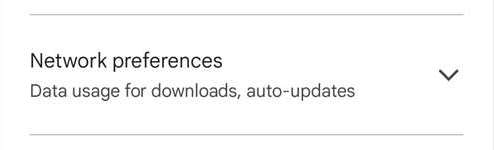
Step 5: Tap on the
Auto-update apps button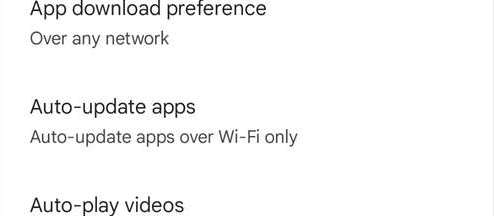
I left REMEMBER that if you update over the mobile network you bought the internet because otherwise it can get expensive!Step 6: Now tap on the desired option
Learn more for more information.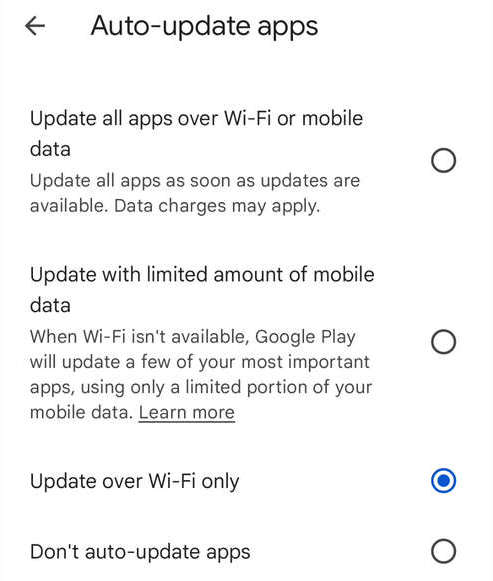
Update over Wi-Fi only selected but you select what you desire.
Manually updating available updates
(Click on the individual step or triangle to hide or show the details (images, info, …))
I used program shortcut on the Home screen, you can open it from where ever you want.Step 1: Open Google Play store application
In my case there is letter Step 2: Tap on profile circle button top right of the program window
A in the circle.
Step 3: Tap on
Manage apps and device button
If you want to update ALL apps at once tap In case that at least one app has disabled updates you can see notification like on the picture bellow. In my case I tapped the Step 4: Now update all or or individual appa (if updates are available)
Update all button but for the individual app tap Update button in the line of the app.
Skip button so the app wont be updated.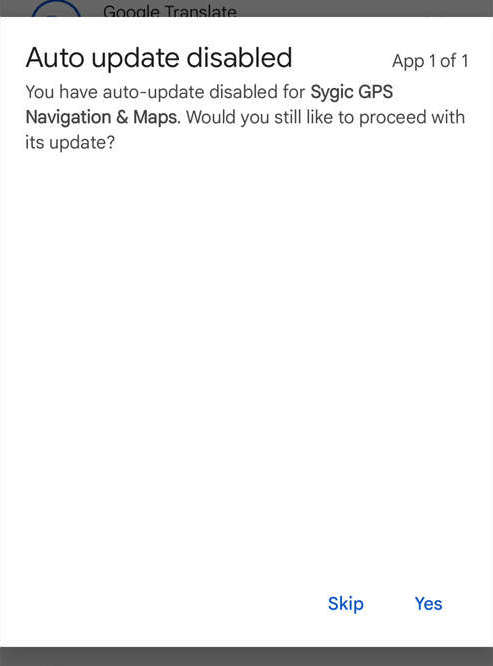
(This tutorial was recorded on the smartphone Xiaomi mi Note 10 Lite, MIUI 13.0.6, English system language)
Links
Video version
(12.09.2025, 18:00 / 06:00 PM, timezone: CEST / UTC+2 / GMT+2)