Let’s change the download location for Google Chrome.
(Click on the individual step or triangle to hide or show the details (images, info, …))
Step 1: Open Google Chrome web browser
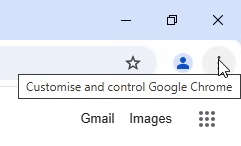
Step 2 Left mouse button click on 3 dots button to open the menu.
Step 3 Left mouse button click on
Settings.
Step 4 Left mouse button click on
Downloads in the left menu.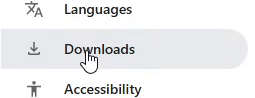
Step 5 In the
Downloads section in the right of the Location with left mouse button click on the Change button to change the downloads location.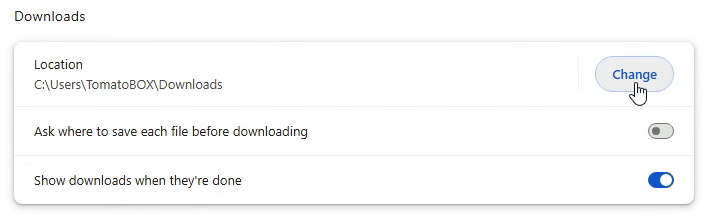
Location is current downloads path.Ask where to save each file before downloading to get notified or not where to save the file you are downloading.Show downloads when they're done to get notified or not when file you are downloading is finished.
Step 6 In the
Location window open the desired folder for the downloads, so you are inside it.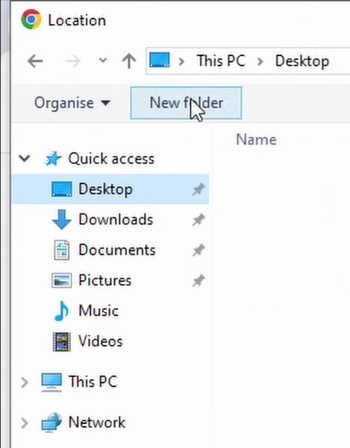
New folder button.
Now new folder is set, enjoy.Step 7 To confirm selected folder left mouse button click on
Select folder button.
(This was based on Google Chrome version 134.0.6998.36 on the Windows 10 22H2 64-bit)