Remember that this program is setting the volume according the Perceived volume and not the actual volume!
Briefly about the music volume
Music contains the sinus like waves and the volume is the average volume between quietest and the loudest part. We know 2 volume types where first is actual volume and second is percived volume. Perceived volume is what human ears can hear which is not the same as the actual volume. In the section links more info, you can get way more info about music volumes etc..
First program launch and music files import
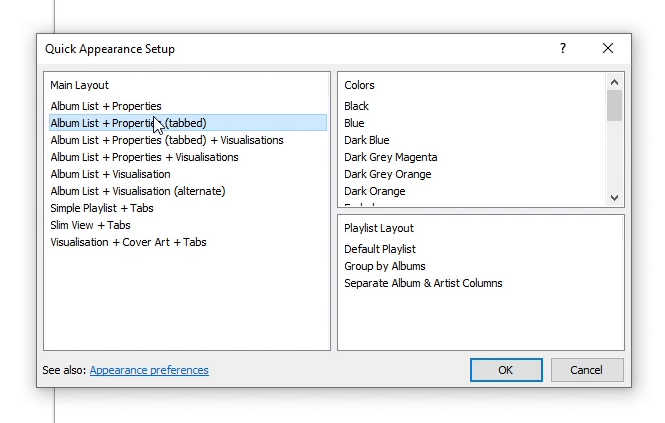
When the program foobar2000 if opened for the first time in the quick Apperance Setup window you can select prefered program looks Main layout, Colors and Playlist Layout. Now import the music MP3 by dragging the music files from a folder on your computer into a foobar2000 playlist OR in the program menu click File and Add files.... (check the Video version for more details)
Analyse/scan volumes of multiple MP3 files (if you want to know the individual file volumes)
Step 1: Select all the music from the playlist you want to analyse and right mouse button click on the selected
In the new window you see list of music files, under the Step 2: Go over the
ReplayGain and left mouse button click on the Scan per-file track gain
Track gain column you see how much louder (+) or quieter (-) volumes are from 89db (decibels). If you want to insert current ReplayGain values into MP3 file info click Update File Tags button othervise left mouse button click on the Cancel button.
Normalize volumes of multiple MP3 music files
BEFORE you do anything to your audio files first do a backup. For example duplicate folder with your music files so when you edit original you have copy in case anything goes wrong!!!!
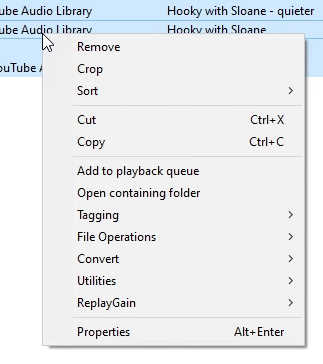
Step 1: Select all the music from the playlist you want to modify and right mouse button click the selected
Step 2: Go over the
ReplayGain and left mouse button click on the Apply gain to file content...
In the Step 3: You can use default settings (like on picture bellow) and left mouse button click on the
Start button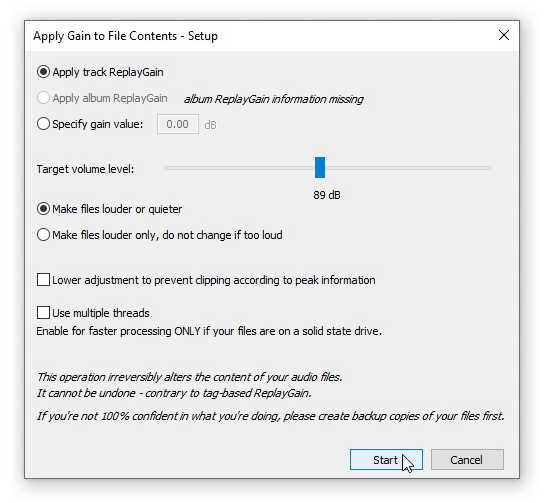
Apply Gain to File Contents - Setup window you can set ton of stuff but I suggest you select:
Apply track ReplayGain with left mouse button click.Target volume level: to 89db.Make files louder or quieter with left mouse button click.Lower adjustment to prevent clipping according to peak information in case if any part of the music is louder than 98db (that means clipping) program will automatically lower the music volume bellow the selected Target volume level: but if unchecked too loud parts will be still there but I think most of music players will just cut off too loud parts.
After the normalize
Now you can Analyse/scan the files again to check current sound volumes. It is normal to have slight volume differences between normalized audio files but that is normal.
links more info
- foobar2000 site
- How to download and install foobar2000 - my guide
- Perceived Volume vs Actual Volume

- Perceived Loudness Explained
- Loudness

- LOUDNESS Explained