Bulk Crap Uninstaller (also known as BCUninstaller or short BCU) is free opensource program uninstaller for operating sistems Windows, there is also option to download the program for Linux, Mac, … and like any other uninstallers (Revo Uninstaller, GEEK UNINSTALLER, IObit Uninstaller, Uninstalr and others) they try to remove leftovers (files, folders, registry entries) by it’s own official unninstaller program you uninstalled. BCU has a lot of options and it guide you thru every step. No uninstaller program will delete every single trace every time because of different folder names, etc..
Warning
In few cases (low possibility) uninstaller leftover results MAY have unvanted elements that if deleted something other in your system can start missbehaving. No uninstaller program is perfect and I am not responsible for any possible damages! In case something not working good anymore, go to YouTube video comments and write your question.
Note
This tutorial was made on Windows 11 24H2 64-bit
Install BCU with winget
Info
If you do not have WINGET or there is some other warning in the window you are installing BCU install it manually.
(Click on the individual step or triangle to hide or show the details (images, info, …))
Step 1: Right mouse button click on the
Start menu button and then with left mouse button click on the Windows PowerShell OR Terminal as Administrator


Winget command: Terminal window: In the future I plan making Step 2: In new window type in winget command (look little lower) and then press
Enter key on the keyboard to install BCUwinget install -e --id Klocman.BulkCrapUninstaller

Enter key on the keyboard:

Winget tutorial.
Download BCU setup and portable version
Tip
Setup file is intended to install the BCU but portable version not, just run it. Portable version you just download, unpack with archive program like 7zip or integrated archive extractor included in Windows 10 and 11 (check portable section] to see how to extract and open it) and run it.
(Click on the individual step or triangle to hide or show the details (images, info, …))
In the address area of desired web browser (Google Chrome, Mozilla Firefox, Brave, …) type in or copy paste BCU website address and press enter key on the keyboard. If there is some existing web address in the URL area, left mouse button click in the empty part of URL area so current address is selected and you can start typing your address. If URL area is empy, you can just left mouse button click somewhere inside and start typing. BCU website: Website URL/address area: Enter key on the keyboard:Step 1: With left mouse button open your web browser and visit the BCU website
https://www.bcuninstaller.com/

You can download it from Step 2: On the BCU website left mouse button click on the green button
Download on dAppCDN or Download on SourceForgedAppCDN or SourceForge. For this tutorial I used SourceForge.
Step 3: Left mouse button click on
Files
At the time of making this tutorial is latest version is Step 4: Left mouse button click on the newest version
v5.9.
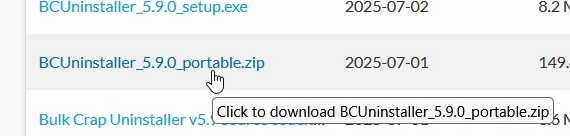
Step 5: Left mouse button click on what you want to download and wait to be downloaded

Install Bulk Crap Uninstaller manually with previously downloaded setup file
(Click on the individual step or triangle to hide or show the details (images, info, …))
If Microsoft Defender SmartScreen notification window shows up, first left mouse button click on the Step 1: With left mouse button click open the setup file (in my case is
BCUninstaller_5.9.0_setup.exe)
More info and then click Run anyway.

Step 2: left mouse button click on the
OK button and optionally you can change installation language with the left mouse button
You can read the license agreement if you desire.Step 3: Left mouse button click on checkbox circle
I accept the licence agreement to select and then Next button
If you clicked Step 4: Left mouse button click on the
Next button but optionally you can change the installation folder by left mouse button click on the Browse buttonBrowse button in new window with left mouse button click on the desired folder and then click button OK.
Step 5: Left mouse button click on the
Next button, optionally you can select/deselect checkboxes with the left mouse button for the components
Step 6: Left mouse button click on the
Next button, optionally you can change name and location in the Start menu with the left mouse button click on Browse button or just not to create it
Don't create Start Menu folder if you do not want it left mouse button click on the chexbox to select it!
Step 7: Left mouse button click on the
Next button and optionally if checkbox near the Create a desktop shortcut is selected Windows desktop shortcut will be created
If you left mouse button click on the Step 8: Review your settings and then left mouse button click on the
Install button
Back button you can change previously defined settings in this installation window.
In case you selected for BCU to open on finished installation you may see notification Step 9: Left mouse button click on the
Finish button and optionally if checkbox near the Launch BCUninstaller is selected BCU program will open after you left mouse button click on the Finish button
Windows User Account Control if you want to open the BCUninstaller.exe just left mouse button click on the Yes button to confirm.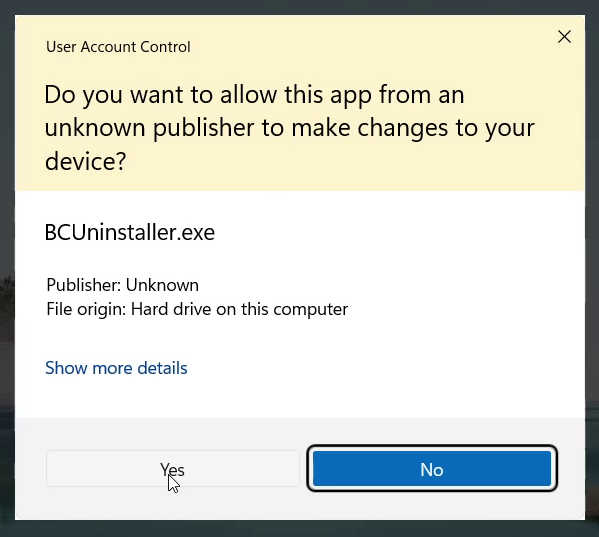
Portable BCU unpack and run
(Click on the individual step or triangle to hide or show the details (images, info, …))
Step 1: Open previously downloaded archive portable file folder
You can upack with archive program like 7zip, WinRAR, … but for this tutorial I am using Windows 11 (also available in Windows 10) integrated archive extractor.Step 2 To unpack it right mouse button click on the BCU archive file (in my case is
BCUninstaller_5.9.0_portable.zip) and then left mouse button click on Extract All...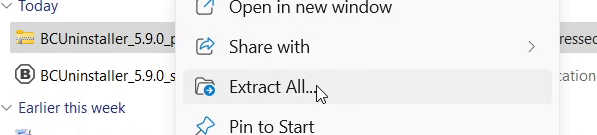
If Step 3: Left mouse button click on the
Extract button and wait to be extracted, optionally you can change where to unpack with left mouse button click on the Browse buttonShow extracted folder when completed checkbox is selected upon of finished extracting extracted folder will be open inside Windows file manager.
If Now you should be able to use the BCU.Step 4: In the extracted folder left mouse button click on the
BCUninstaller.exe program to run it.exe extension may be shown or not, it depends on your Windows settings.
Windows User Account Control asks you if you want to open the BCUninstaller.exe just left mouse button click on the Yes button to confirm.
BCU first run initial settings
Everytime BCU is opened it will scan your system for the uninstallers to show them on the list. When BCU opens for the first time it will go through initial settings (bellow).

(Click on the individual step or triangle to hide or show the details (images, info, …))
If you want to change the program language left mouse button click on the Step 1: Left mouse button click on the
Continue button, optionally you can change the program language with left mouse button clickDefault and change the program language where after selecting left mouse button click on the Apply button to confirm your selection.
Left mouse button click on the checkboxes to select/deselect desired options:Step 2: Set list view options and left mouse button click on the
Continue button
Show uninstallers in groups Uninstallers will be grouped by the first character of the uninstaller title.Select using checkboxes If you want to uninstall multiple programs at once, but I prefer checked it off to do one at a time.Highlight certified uninstallers Highlight uninstallers certified by relevant authorities.
Step 3: Leave checkboxes unchecked and left mouse button click on the
Continue button but if you are advanced user select your options
Left mouse button click on the checkboxes to select/deselect desired options:Step 4: With left mouse button click select your options and then click on the
Continue button
Higlight invalid uninstallers to higlight invalid/corrupted uninstallers.Show unregistered applications in the list Check to show programs that are not registred in Windowsbut it is part of the main program.
Left mouse button click on the checkboxes to select/deselect desired options:Step 5: With left mouse button click select your options and then left mouse button click on the
Continue button
Automatically look for updates on aplication start To check for BCU updates when it starts up.Automatically send anonymous usage statistics If you allow the BCU to send usage statistics to it’s owner.Enable user ratings of aplications Usable to know if program is on good or bad standing. I think if there is no rating for a program BCU will post it as one star.
Step 6: To conclude setup left mouse button click on the
Finish setup button
Uninstalling a program with BCU
I am using VLC media player to deinstall.
(Click on the individual step or triangle to hide or show the details (images, info, …))
Step 1: Right mouse button click on the program you want to uninstall and then left mouse button click on the
Uninstall button
Left mouse button click on the checkboxes to select/deselect desired options:Step 2: Set your options and then left mouse button click on the
Continue button
Uninstall If you want to uninstall desired program with his official uninstaller.Quiet Uninstall program without any user input of the official program uninstaller.
With left mouse button click on the program to stop from the list and then click Step 3: f BCU detects uninstalling program or program connected to it is running BCU will show this step to stop the program otherwise will jump to the next step
Kill button. In case there is more than one program on the list, you can close them all at once with left mouse button click on the Kill all button. When program is killed, left mouse button click on the Continue button.
Step 4: Left mouse button click on the
Continue button, optionally you can check/uncheck options but leaving it by default is okay
Step 5: Left mouse button click on the
BEGIN UNINSTALLATION button to start the uninstallation progress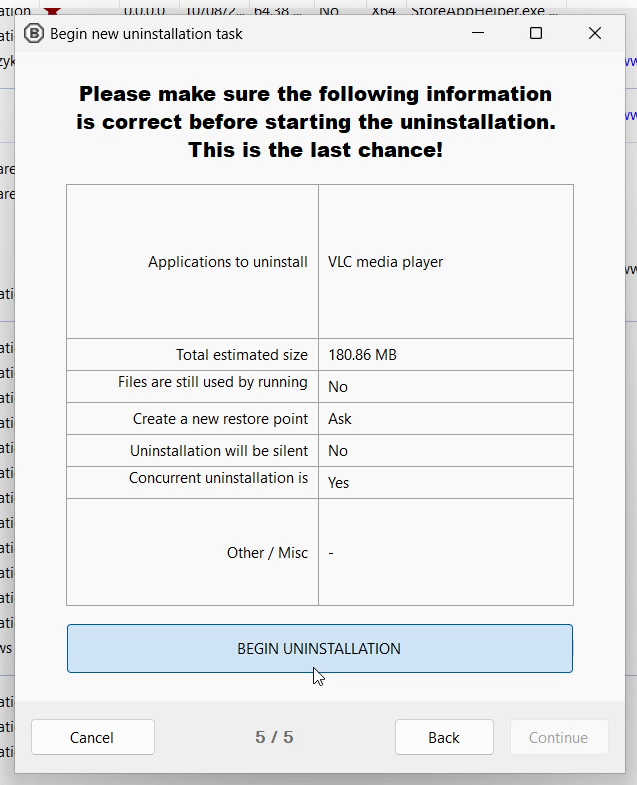
Step 6: Uninstall program with official uninstaller (left on picture) while BCU window waits in the background to be completed

When uninstallation is finished in BCU window you will see the check. In some cases some uninstallers will open some kind of window like an website, close that window or windows to proceed to left mouse button click on the Step 7: When uninstalled left mouse button click on the
Close buttonClose button.
Step 8: Left mouse button click on the
Yes button to search for the leftovers and wait untill search is completed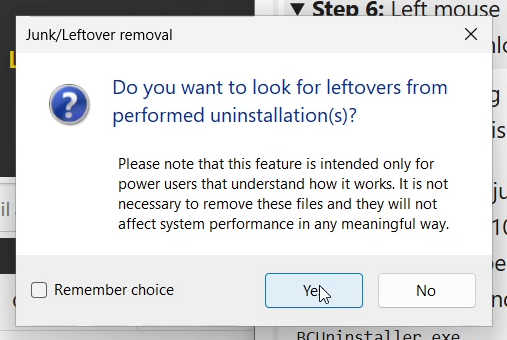
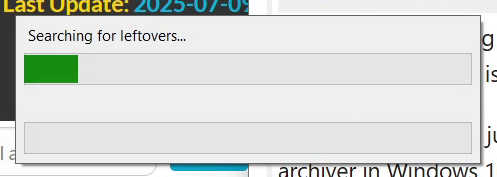
You can just left mouse button click on the Step 9: With left mouse button click select the desired options and then click on the
Delete selected button, you can also use confidence dropdown…Delete selected button but you can do few stuff:
Good and Very good are in almost all cases okay to delete while Questionable or Bad be carefull about. All results bellow the selected confidence will be ignored. It may be that non of the leftovers are available. If you select Bad you will get an notification if you really want to show them because it can be dangerous! To confirm left mouse button click on the Yes button.


I used Windows Desktop for registry leftovers backup in this tutorial. Now the program and the traces should be removed.Step 10: If there are registry leftovers BCU will ask you if you want to create a backup of those registry entries.Left mouse button click on the
Create button, select the folder where to backup and then left mouse button click on Select Folder

Few BCU elements
(Click on the individual step or triangle to hide or show the details (images, info, …))
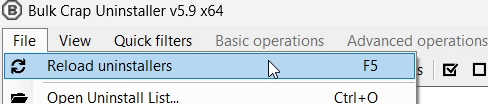
BCU main interface
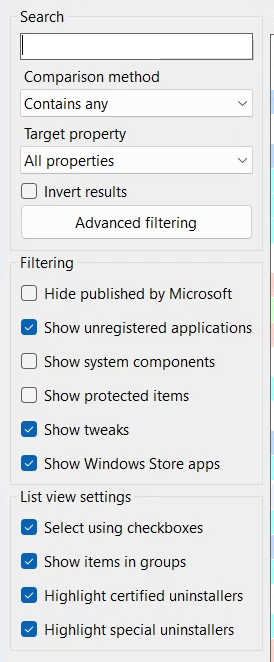

Reload uninstallers list manually
Tool Startup manager for Windows


Links
Video version
PREMIERE (22.08.2025, 18:00 / 06:00 PM, timezone: CEST / UTC+2 / GMT+2)